 /
Virginia Learning Center / Tips on using the VLC / Course Managers / How to Delete Sections and Events
/
Virginia Learning Center / Tips on using the VLC / Course Managers / How to Delete Sections and Events
/
Virginia Learning Center / Tips on using the VLC / Course Managers / How to Delete Sections and Events
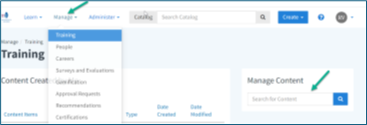
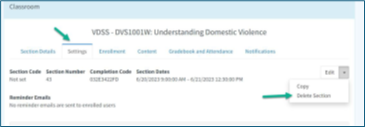
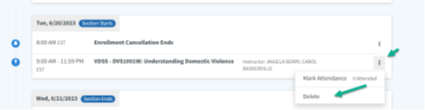
Use the steps below to remove a section or event from the system.

Tip
Before deleting, check that the section or event is no longer needed. This helps prevent loss of important training records.





 Find my local department