 /
Virginia Learning Center / Tips on using the VLC / Reporting Role / How to Populate an Enrollment Report
/
Virginia Learning Center / Tips on using the VLC / Reporting Role / How to Populate an Enrollment Report
/
Virginia Learning Center / Tips on using the VLC / Reporting Role / How to Populate an Enrollment Report
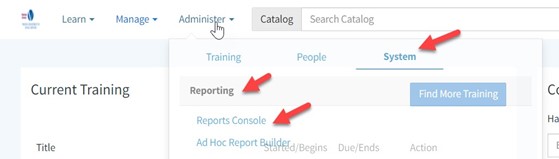
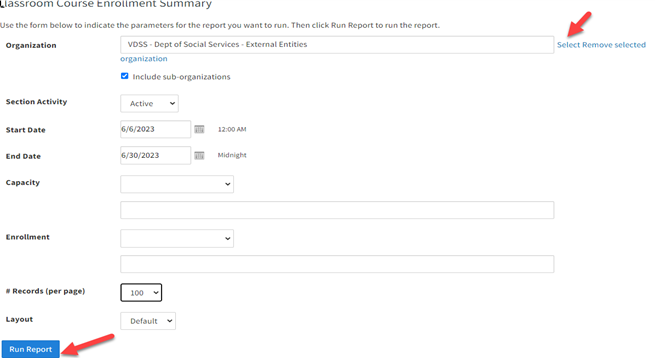
Follow these steps to get the Classroom Course Enrollment Summary from the VDSS External Domain.





 Find my local department